

Why You Need a Markdown Editor
At its core, a Markdown editor is just a text editor with built-in support for Markdown syntax and rendering. But why does this matter?
Whether you’re jotting down notes, expressing ideas, writing blog posts, drafting reports, or preparing documents, good writing is a necessity. While plain text editors can feel too barebones, fully-featured rich text editors often distract with their countless formatting options (font styles, colors, layouts). Markdown strikes the perfect balance between the two. It provides simple, intuitive formatting options that anyone can learn in just a few minutes, allowing you to focus on content while still organizing your thoughts effectively.
Personally, installing a Markdown editor is one of the first things I do when setting up a new computer. Despite the abundance of online note-taking apps and tools, I firmly believe in the value of plain text Markdown notes. Why? Because I don’t want my data to be locked into a proprietary app or encrypted in an obscure format. I’ve elaborated on this reasoning in another post:
For long-term note storage, I rely on Obsidian, even if I initially jot down notes in other apps. Ultimately, all my important notes are archived in Obsidian’s local vaults.
However, there are always scenarios where I need a lightweight, quick editor for temporary tasks: opening a README file, creating a quick list of links, or drafting a short piece of text. For a long time, I used Typora (a paid tool) for these tasks. But recently, I discovered several excellent free and open-source (FOSS) alternatives. Here’s a curated list of five Markdown editors worth trying out.
5 Free and Open Source Markdown Editors
The following tools are all free, open source, and support local file storage. Let’s dive in!
1. QOwnNotes

QOwnNotes is an intriguing open-source product with a retro aesthetic reminiscent of classic text editors like EditPlus. It uses a traditional split-pane preview mode for Markdown rendering, instead of the “What-You-See-Is-What-You-Get” (WYSIWYG) style popularized by tools like Typora. This gives it a pleasantly old-school vibe, but it also packs several unique features:
- Cross-platform compatibility: Built with Qt rather than Electron, making it lightweight and fast.
- Evernote import: Supports importing
.enexfiles, even large ones. - Cloud integration: Seamlessly integrates with OwnCloud and NextCloud, which is a dream come true for users of these platforms.
- CalDav support: Synchronize notes with calendar protocols.
- Browser extensions: Enhance functionality with add-ons.
While the interface may feel like it’s from a decade ago, QOwnNotes compensates with its rich feature set.
Learn more: https://www.qownnotes.org/
2. Zettlr

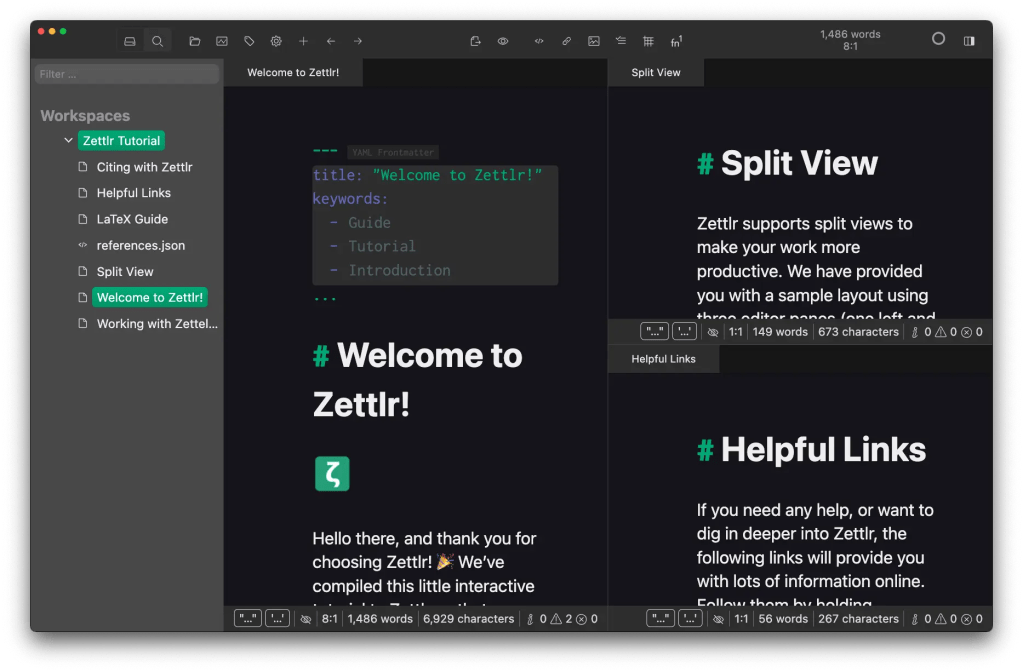
Zettlr is a Markdown editor designed with academics and researchers in mind. It’s ideal for drafting research notes, creating knowledge cards, and organizing academic writing. It’s a truly “scholar-friendly” tool with features tailored to meet the needs of researchers.
Key features include:
- Zettelkasten support: Perfect for users who practice the Zettelkasten method of note-taking.
- Reference management: Integrates with Zotero and supports thousands of citation styles.
- Academic templates: Includes submission templates for various academic journals.
- Automation tools: Offers features like variables, tab stops, and snippet automation, making it easy to construct headers, abstracts, keywords, and other structured content.
Learn more: https://www.zettlr.com/
3. Ghostwriter

Ghostwriter is a minimalist writing tool built for distraction-free text creation. It’s particularly notable for being Linux-friendly, though it also supports Windows. macOS users, however, will need to compile it themselves from the source code.
The interface feels familiar to most Markdown users, but Ghostwriter distinguishes itself with its Hemingway Mode: a typewriter-style feature that disables the backspace and delete keys. The idea is to force yourself to keep writing without pausing to self-edit, ensuring an uninterrupted flow of thought. Once you start typing, you can only move forward—no going back!
Other helpful features include:
- Writing statistics: Track word count, paragraph count, and estimated reading time.
- Focus mode: Highlights the current sentence, dimming everything else.
- Math support: Renders LaTeX equations seamlessly.
Learn more: https://ghostwriter.kde.org/
4. MarkText


MarkText is a lightweight, user-friendly Markdown editor that serves as a free and open-source alternative to Typora. It’s designed for everyday users who want a clean, intuitive experience.
While it lacks some of the advanced features of the other tools mentioned, MarkText shines with its WYSIWYG rendering—one of Typora’s signature features. Its minimalist design keeps distractions at bay, focusing solely on content creation. The editor is simple, yet functional, with just the right amount of features to meet most people’s needs.
Learn more: https://github.com/marktext/marktext
5. Other Options: Typedown
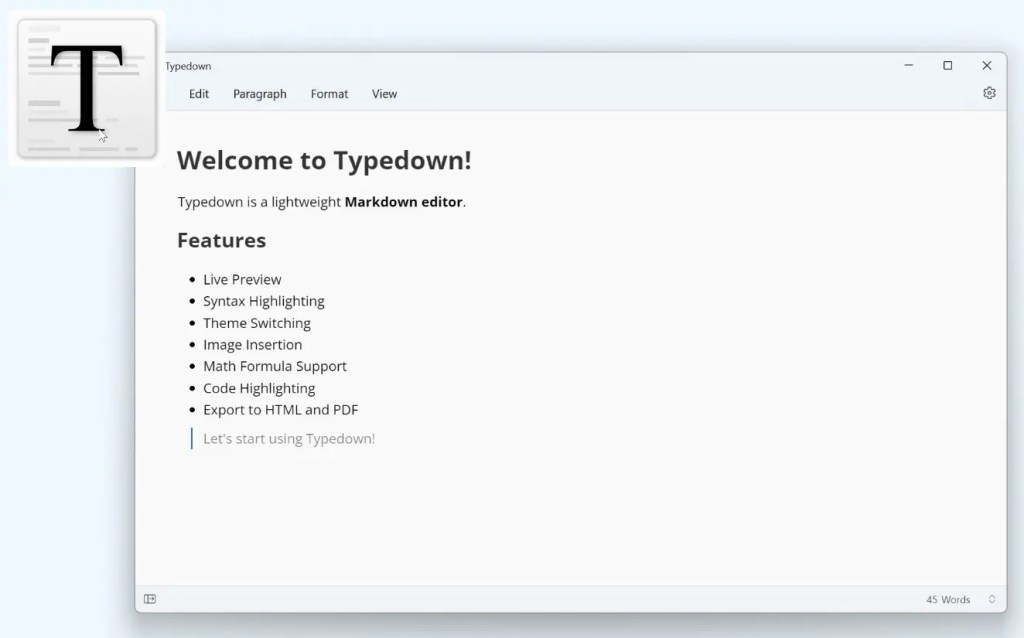
For Windows users, Typedown is a quick and free Markdown editor available on the Microsoft Store. It supports instant Markdown rendering and is open source, making it a great lightweight option for casual use. However, since it’s built on the .NET framework, it’s only available for Windows.
Learn more: https://github.com/byxiaozhi/Typedown
Bonus Mention: VS Code
While not a dedicated Markdown editor, Visual Studio Code is a powerful tool that can handle Markdown files with ease. With the right extensions, it can become a fully-featured Markdown editor. However, I personally prefer the minimalist style and live preview capabilities of tools like Typora or MarkText, so I won’t delve too deeply into VS Code here.
Final Thoughts
A good Markdown editor is an essential survival tool in today’s digital world. Devices, operating systems, and flashy apps may come and go, but as long as your notes remain in plain text and you have a reliable editor, your work can continue uninterrupted. Markdown editors are not just tools—they’re a gateway to clarity and focus in writing. So why not pick one that suits your needs and make it a part of your productivity arsenal?


 My Own Sys
Leave a comment