

If you’ve ever envied the streamlined efficiency of tiling window managers like i3wm on Linux, then GlazeWM might just be the game-changer every Windows user has been waiting for. With its keyboard-driven commands and highly customizable configuration, GlazeWM elevates your window management to a whole new level, making it an ideal choice for productivity enthusiasts, developers, and multitasking pros alike.
What is GlazeWM?
GlazeWM is a lightweight, tiling window manager specifically designed for Windows, taking its inspiration from Linux tools like i3wm and Polybar. It’s compatible with Windows 10 and 11, and offers immense flexibility via simple, human-readable YAML configuration files.

What Sets GlazeWM Apart?
At its core, GlazeWM is all about efficiency. It allows users to organize, control, and adjust their workspace layouts entirely through keyboard shortcuts, streamlining workflows and eliminating the need for constant mouse movements.
Supported Platforms:
- Windows 10
- Windows 11
Who’s It For?
- Software Developers: Manage code editors, terminals, and browsers seamlessly.
- Data Analysts: Keep scripts, dashboards, and results in perfect harmony.
- Multitaskers: Handle multiple applications at once like a pro.
- Keyboard Enthusiasts: Embrace the joy of mouse-free navigation.
Key Features and Highlights
1. Keyboard-Driven Window Management
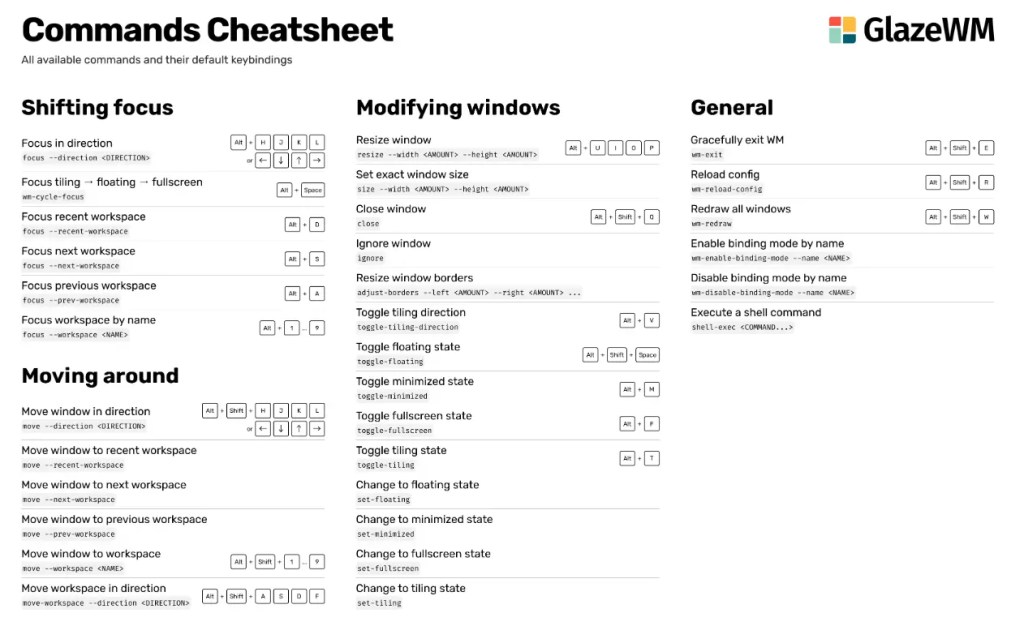
GlazeWM is all about intuitive shortcuts. With just a few keystrokes, you can:
- Resize windows (e.g.,
resize --width -2%). - Switch window focus (e.g.,
focus --direction left). - Move windows between workspaces (e.g.,
move --workspace 1).
Use case: Imagine you’re juggling a code editor, terminal, and browser. Instead of fumbling with a mouse, you can instantly switch focus or rearrange your layout with a few quick commands. It’s a productivity dream for busy coders.
2. Seamless Multi-Monitor Support
Got multiple screens? GlazeWM has you covered. Assign specific workspaces to individual monitors and fine-tune layouts to fit your setup.
Use case: Picture this: your main monitor houses your IDE, while your secondary screen holds your documentation or test environment. GlazeWM makes it effortless to manage both without breaking focus.
3. Extreme Customizability
Customization is where GlazeWM truly shines. Through its YAML configuration file, you can tweak almost every aspect, including:
- Window rules (e.g., always float or fullscreen specific apps).
- Workspace names.
- Visual elements like gaps, border colors, and more.
Bonus: GlazeWM comes bundled with Zebar, a sleek top status bar that’s fully customizable, letting you add widgets or tweak its appearance to fit your style.
4. Lightweight and High-Performance
Built using the Windows API, GlazeWM is incredibly lightweight, consuming only about 1MB of memory.
Use case: Even on a resource-constrained laptop, GlazeWM runs smoothly without impacting other applications. Whether you’re coding, analyzing data, or running VMs, it won’t weigh your system down.
Real-Life Scenarios Where GlazeWM Shines
- For Developers:
Assign your IDE, terminal, and browser to separate workspaces, then switch between them effortlessly. It’s like turning your desktop into a command center for your projects. - For Data Analysts:
Keep your data scripts running on one monitor while monitoring visualizations or adjusting parameters on another. Multitasking made simple. - For Multitaskers:
When working on multiple documents at once, GlazeWM’s tiling layout lets you compare and edit side-by-side without the hassle of constant window switching.
Pros and Cons: What You Need to Know
Pros:
- Minimalist Interface: No clutter, no distractions—just the tools you need to get things done.
- Keyboard First: Operate entirely with shortcuts, reducing reliance on the mouse.
- Low Resource Usage: Barely noticeable impact on system performance.
- Free and Open Source: No cost, no catch.
Cons:
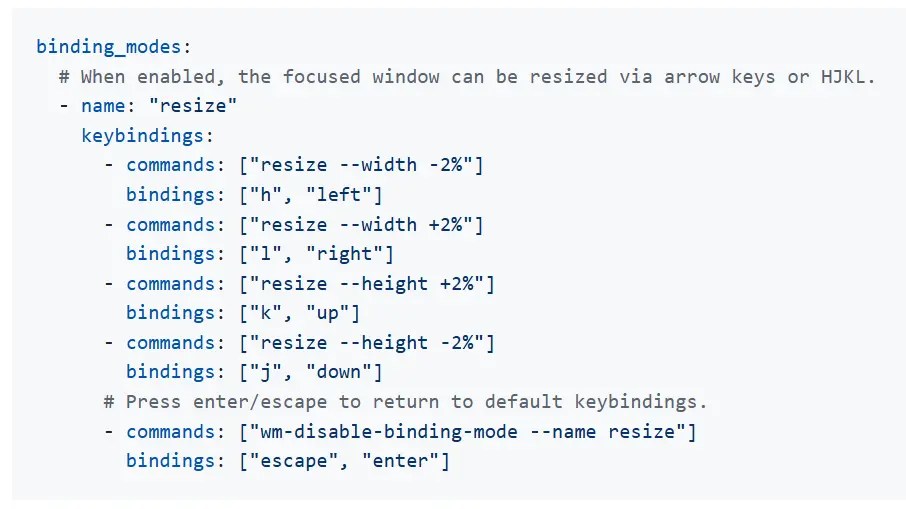
- Steep Learning Curve: Beginners may need some time to master the shortcuts and YAML configuration.
- Compatibility Quirks: Some apps, especially those requiring admin privileges, might not play nicely with GlazeWM.
How Does GlazeWM Compare?
| Feature/Tool | GlazeWM | FancyZones (PowerToys) | i3wm (Linux) |
|---|---|---|---|
| Tiling Mode | Full Support | Partial Support | Full Support |
| Multi-Monitor Support | Yes | Yes | Yes |
| Customization | High | Moderate | High |
| System Resource Usage | Extremely Low | Moderate | Extremely Low |
| Platform Support | Windows | Windows | Linux |
While Microsoft’s FancyZones (part of PowerToys) offers basic tiling, GlazeWM goes far beyond with powerful layouts and extensive customization. And for i3wm fans, it’s undoubtedly the closest you’ll get to replicating the Linux tiling experience on Windows.
Final Thoughts
GlazeWM is a fantastic tool for anyone looking to supercharge their productivity on Windows. It’s lightweight, powerful, and brimming with customization options. While it does come with a bit of a learning curve, the payoff in efficiency is absolutely worth it. If you’ve been searching for a way to bring a Linux-style tiling window manager to Windows, GlazeWM is the tool you’ve been waiting for.
Rating: 9/10
Pro Tip: Dive into the documentation and set aside some time to fine-tune your setup—you won’t regret it!



 My Own Sys
Leave a comment